
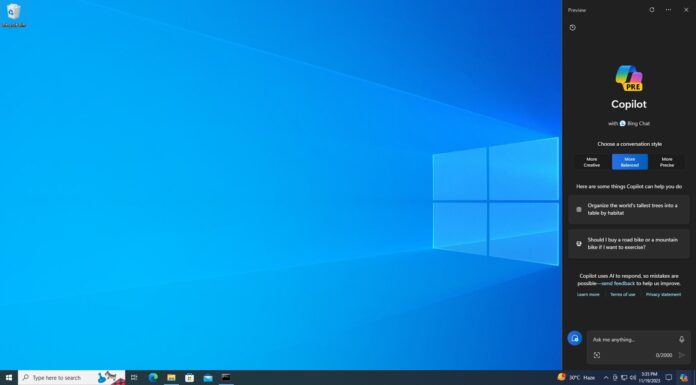
Hey there, fellow IT enthusiasts! Today, we’re diving into a new method to reclaim your focus and productivity by disabling Windows Copilot on your Windows 365 Cloud PC and Windows 11 devices. If you’ve ever felt like your digital assistant was a bit too chatty, this one’s for you.
First things first, let’s understand what Windows Copilot is all about. Imagine having an AI-powered assistant constantly chiming in with suggestions, inspirations, and distractions while you’re trying to get work done. Well, that’s Windows Copilot for you! While it’s great for some, others prefer a quieter workspace without constant interruptions.
So, how do you bid farewell to Copilot’s chatter? With the latest update to Windows Intune, Microsoft has introduced a nifty way to disable Copilot through the settings catalog policy. No more diving into complex CSPs or registry edits!
Here’s a quick guide to disable Copilot and reclaim your focus:
- Log in to your Microsoft Intune admin center.
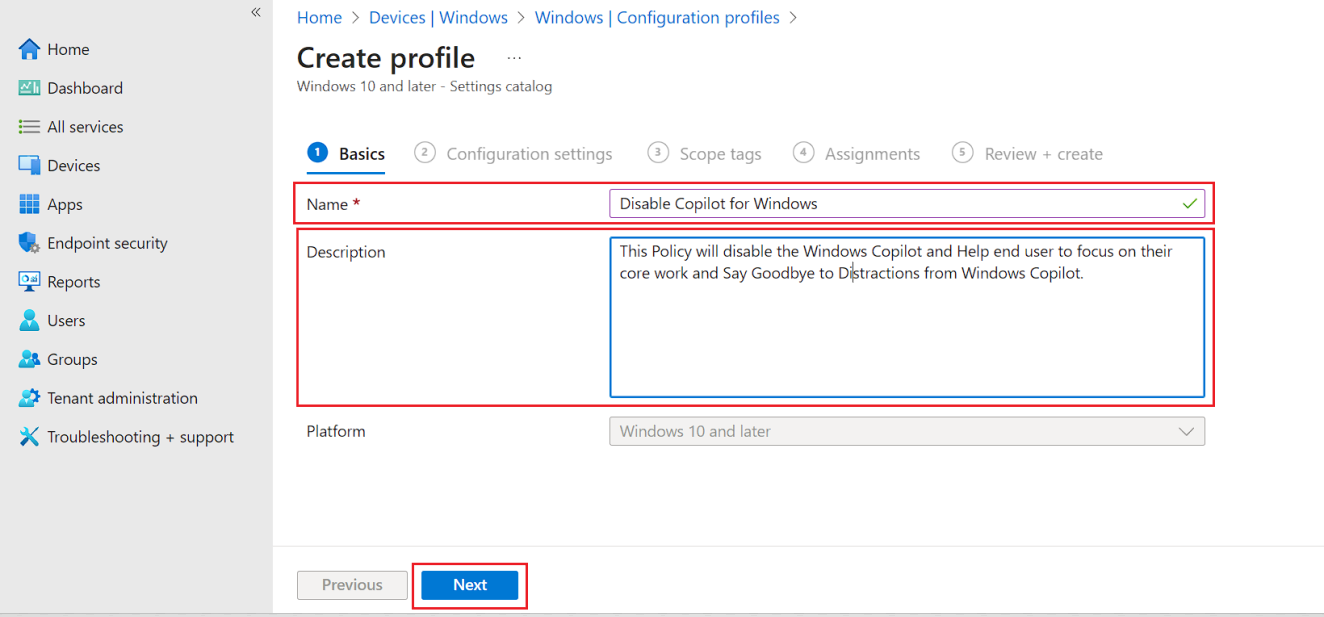
- Create a new configuration profile for Windows 10 and later devices, and select “Create”, Choose Platform as “Windows 10 and Later” and profile type as “Settings Catalog.”

- Name your profile “Disable Copilot for Windows” and give it a description like “This Policy will disable the Windows Copilot and Help end user to focus on their core work and Say Goodbye to Distractions from Windows Copilot..”Then, hit “Next.”
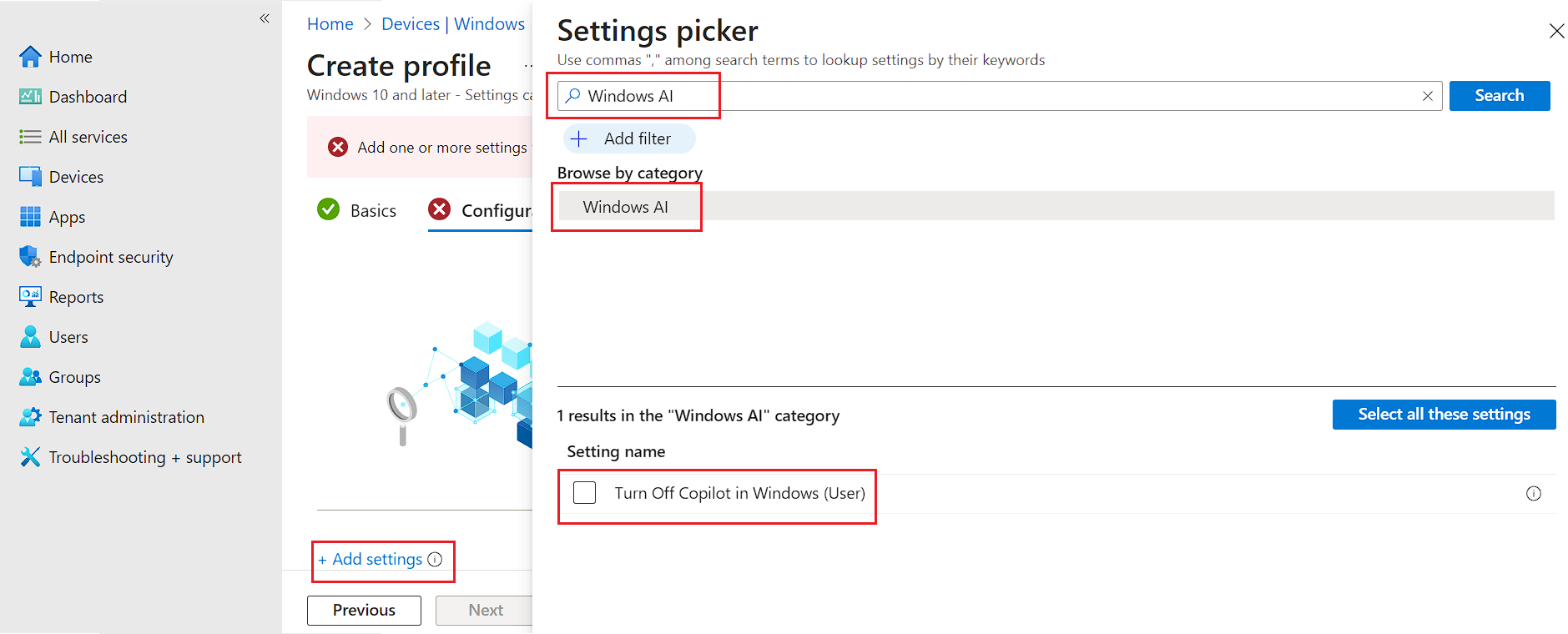
- Click “Add Settings”, Under the Setting Picker, Search or navigate to the “Windows AI” category and find the setting labeled “Turn off Copilot in Windows (user)” and Tick on it.
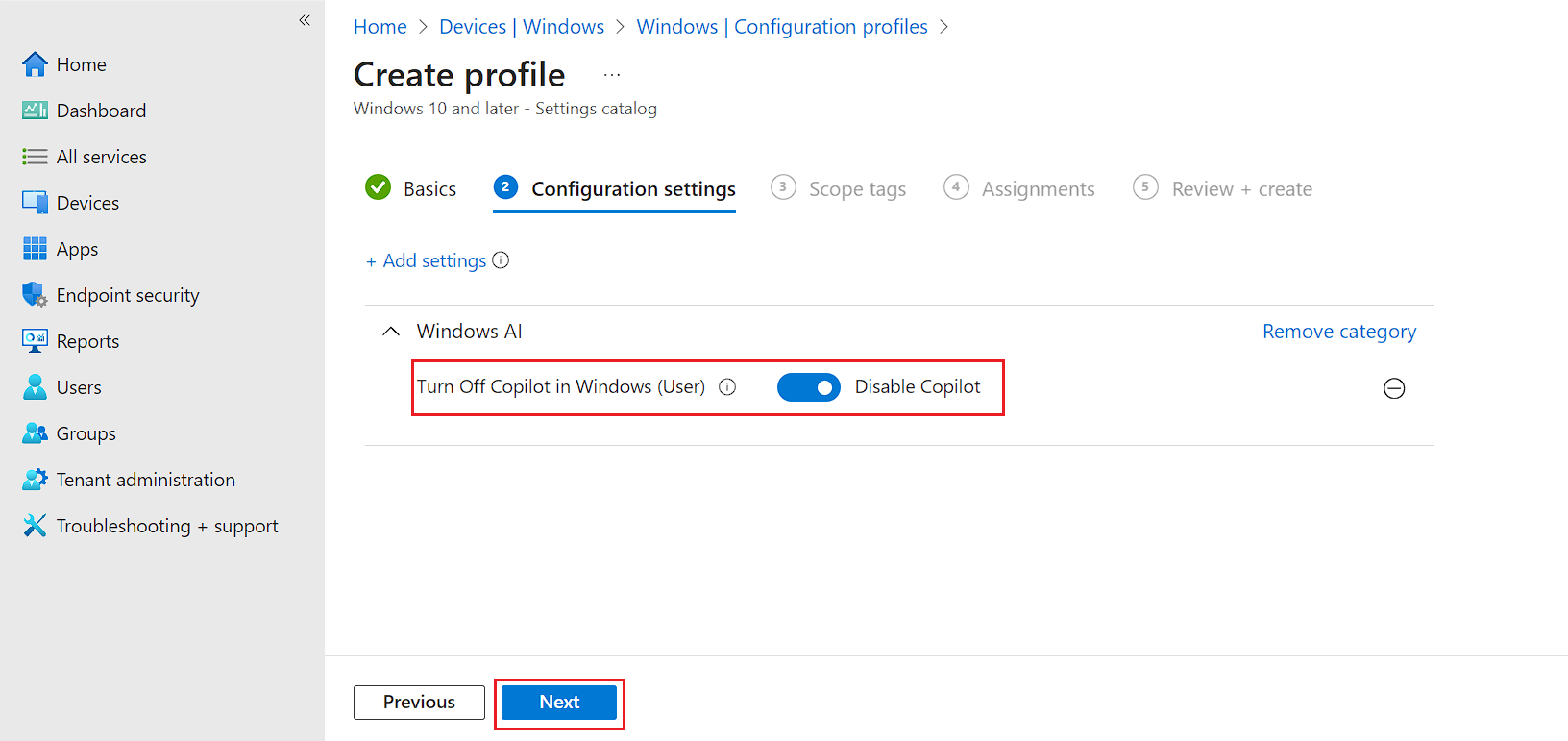
- Toggle the slider to “Disable the Copilot settings” and hit “Next.”
- Now, Move to assigments and assign the policy to a device group containing your Windows 365 Cloud PC or Windows 10/11 devices.
And just like that, you’ve taken control of your workspace!
Once applied, give it some time, and when you log in to your Windows 365 Cloud PC or Windows 10/11 device later, you’ll notice that Copilot has bid adieu and disappeared from the taskbar. Ah, the sweet sound of silence!
With Copilot out of the picture, you can focus better, collaborate without distractions, and let your creativity flow without interruptions.
So, there you have it, folks! Say goodbye to distractions and hello to productivity with this simple tweak. If you have any questions or need further assistance, feel free to reach out.
Here’s to a quieter, more focused work environment! Fell free to comment on section for any query or question.
Views: 73
Ahaa, its good conversation about this post
here at this weblog, I have read all that, so now me also commenting here.